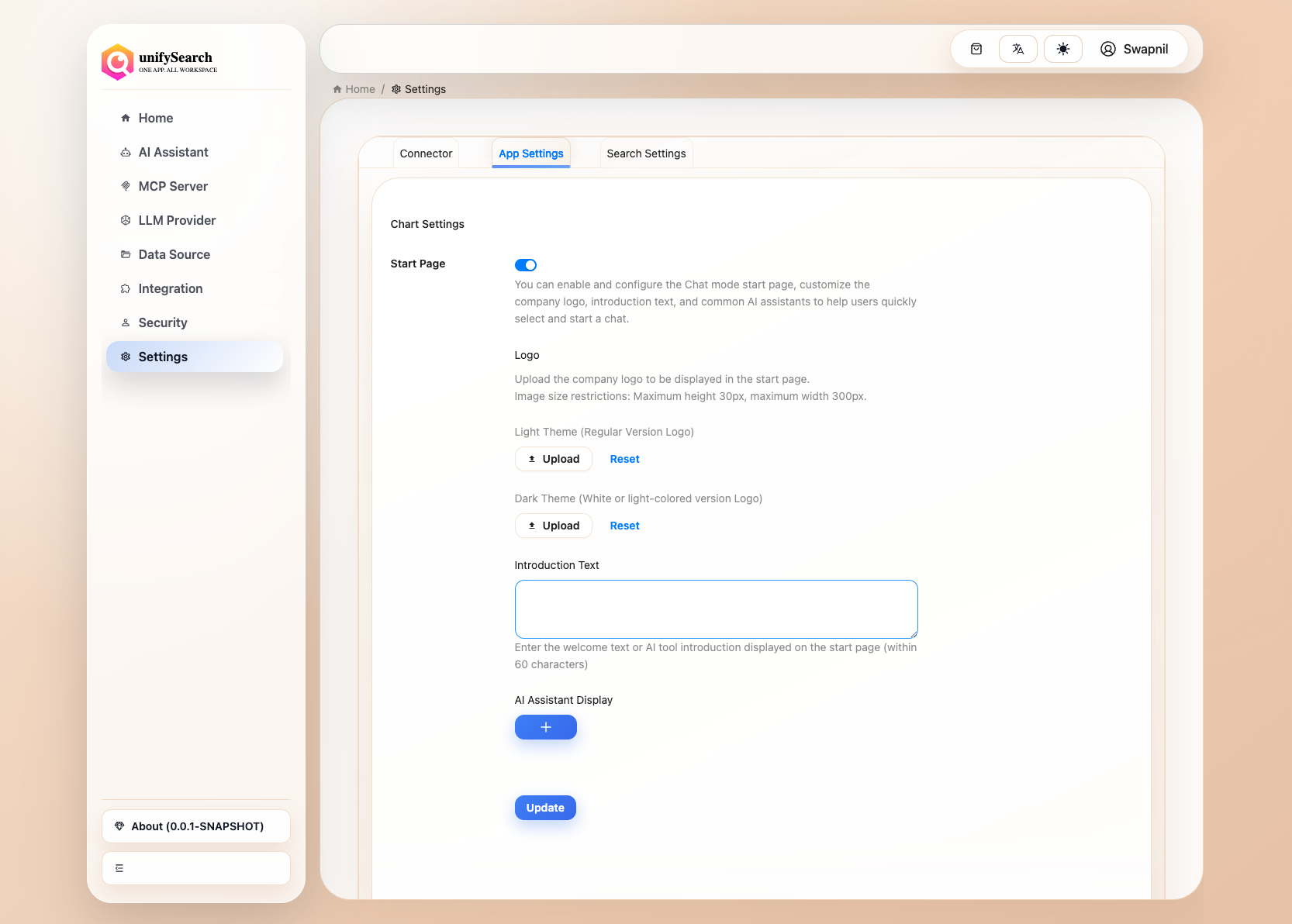
System Settings#
System Settings API#
curl -XPOST http://localhost:9000/settings -d'
{
   "server":{
   		"name": "My UnifySearch Server",
        "endpoint":"http://xxxx/",
		"provider": {
			"banner": "http://localhost:9000/banner2.jpg",
			"description": "UnifySearch AI Server - Search, Connect, Collaborate, AI-powered enterprise search, all in one space.",
			"eula": "https://unifysearch.us/eula.txt",
			"icon": "https://unifysearch.us/icon.png",
			"name": "UnifySearch",
			"privacy_policy": "https://unifysearch.us/privacy_policy.txt",
			"website": "https://unifysearch.us"
		},

   },
	"llm":{
		  "type":"ollama", //or openai
		  "endpoint":"http://xxx",
		  "default_model":"deepseek_r1",
		  "parameters":{
			  "top_p":111,
			  "max_tokens":32000,
			  "presence_penalty":0.9,
			  "frequency_penalty":0.9,
			  "enhanced_inference":true,
		  }
	}
}'
System Settings UI Management#
Server#
Log in to the UnifySearch-Server admin dashboard, click Home in the left menu to view server infomation, as shown below:
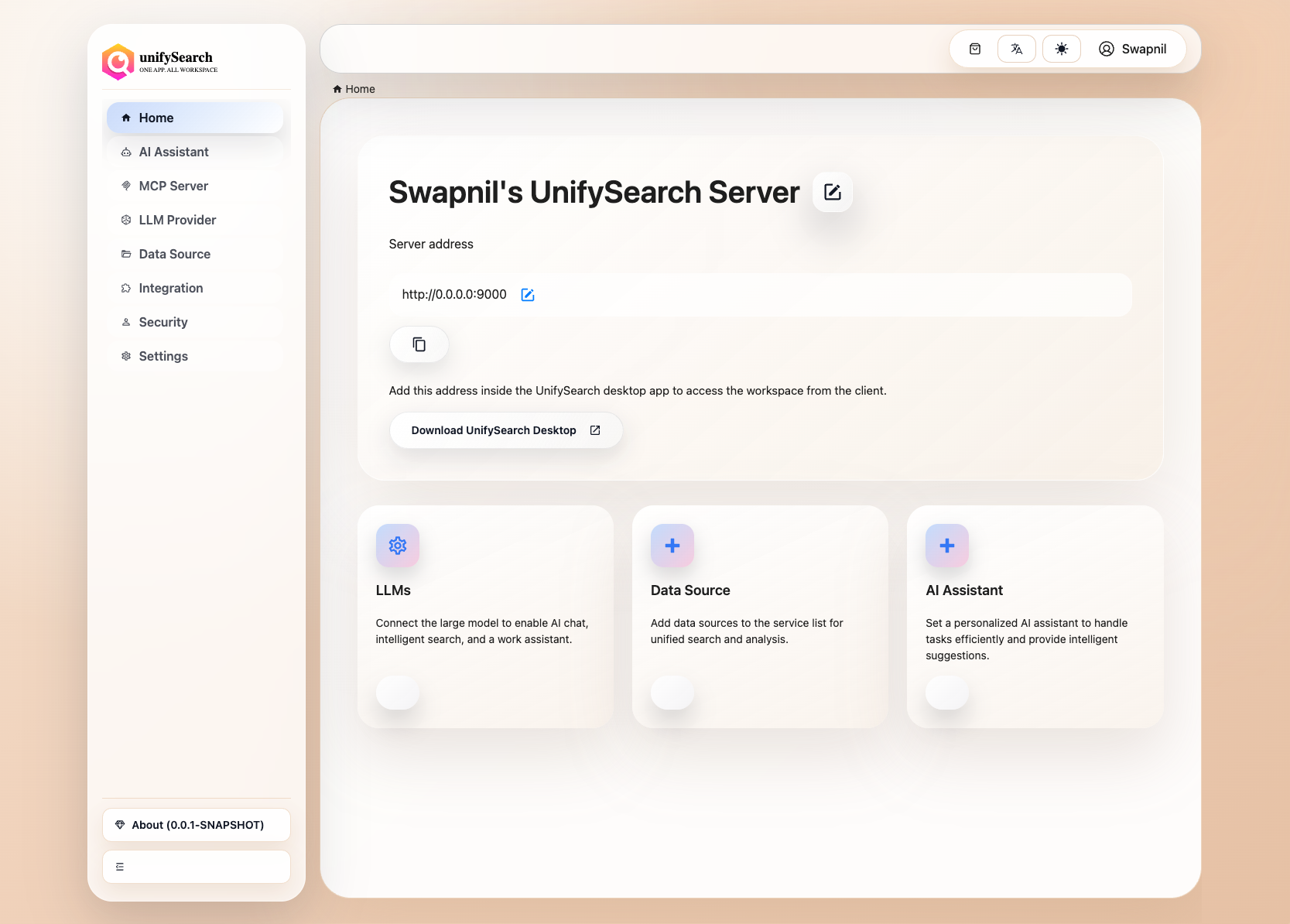
Click the edit button next to the name (address), enter a new one, and then click the save button to save the name (address).
App Settings#
Log in to the UnifySearch-Server admin dashboard, click Settings in the left menu, and then click tab App Settings to view app settings, as shown below:
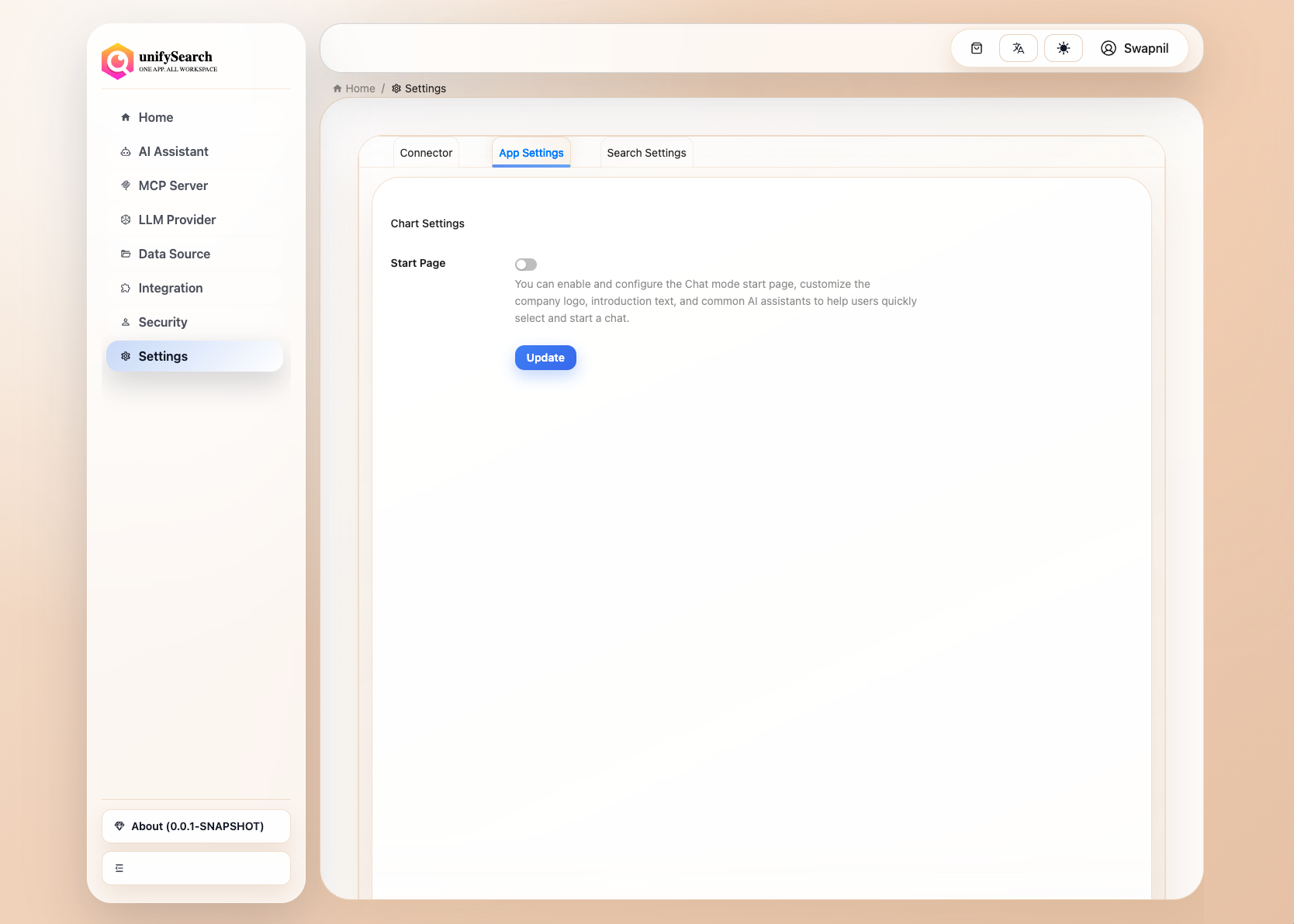
You can set whether to enable the chat start page and configure the relevant parameters here.